What is Quady3D AI?+
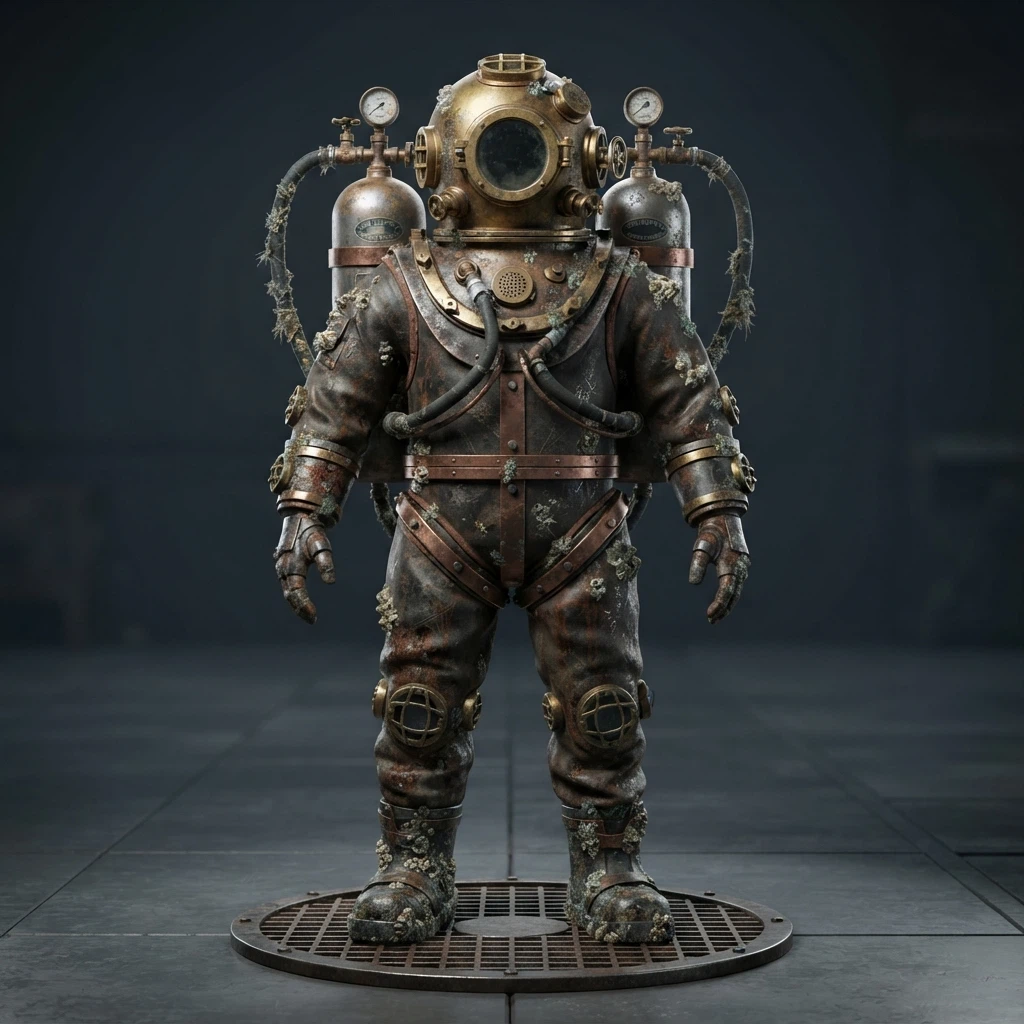
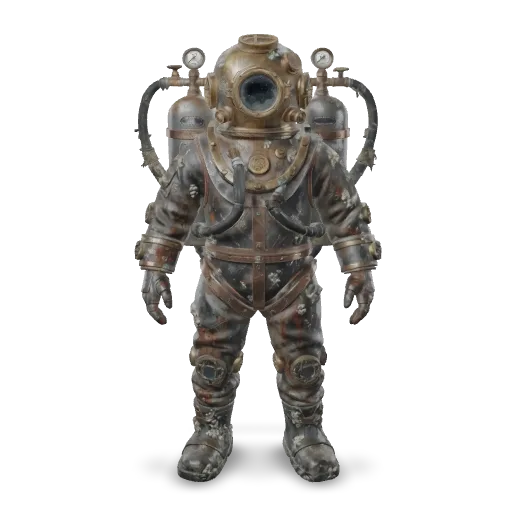
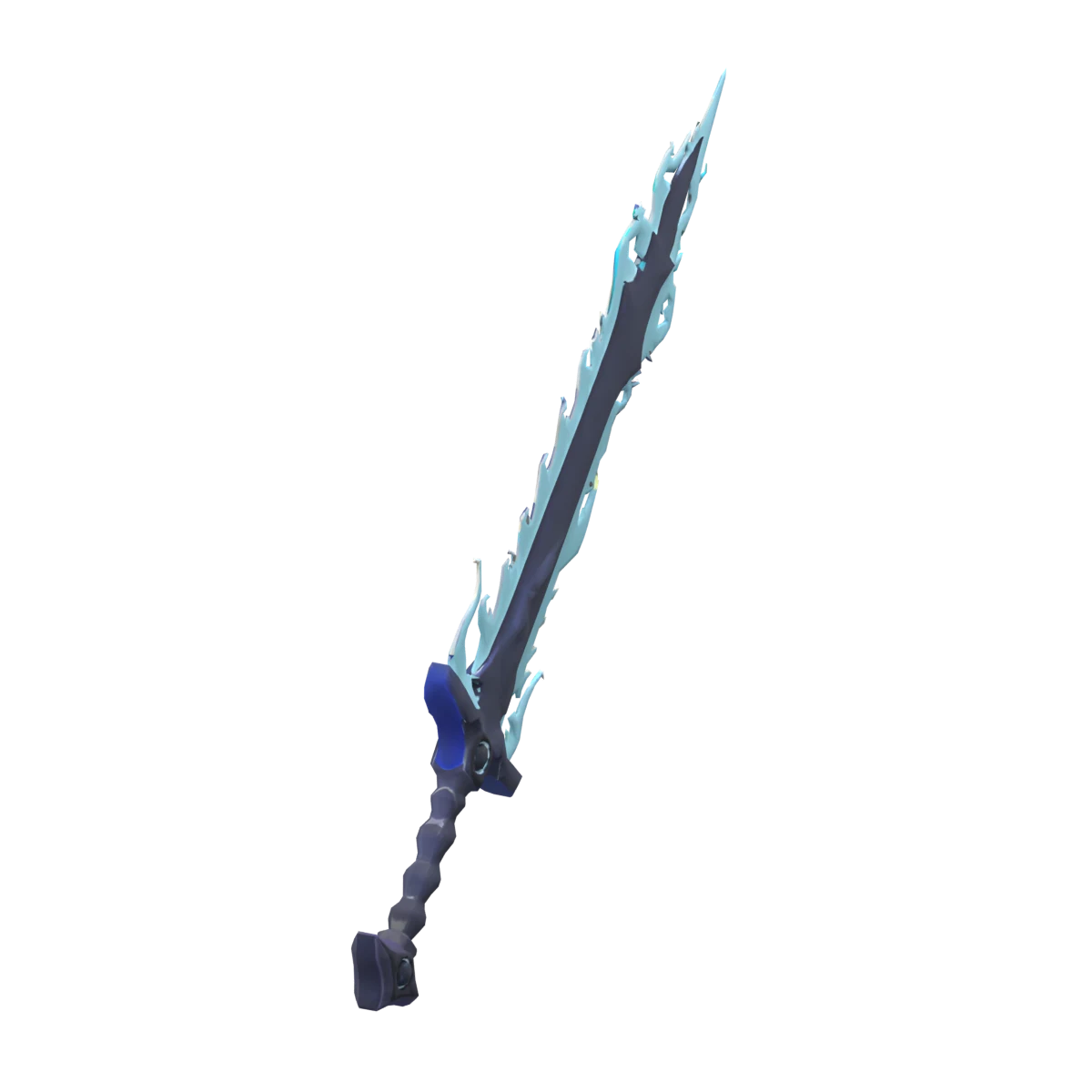
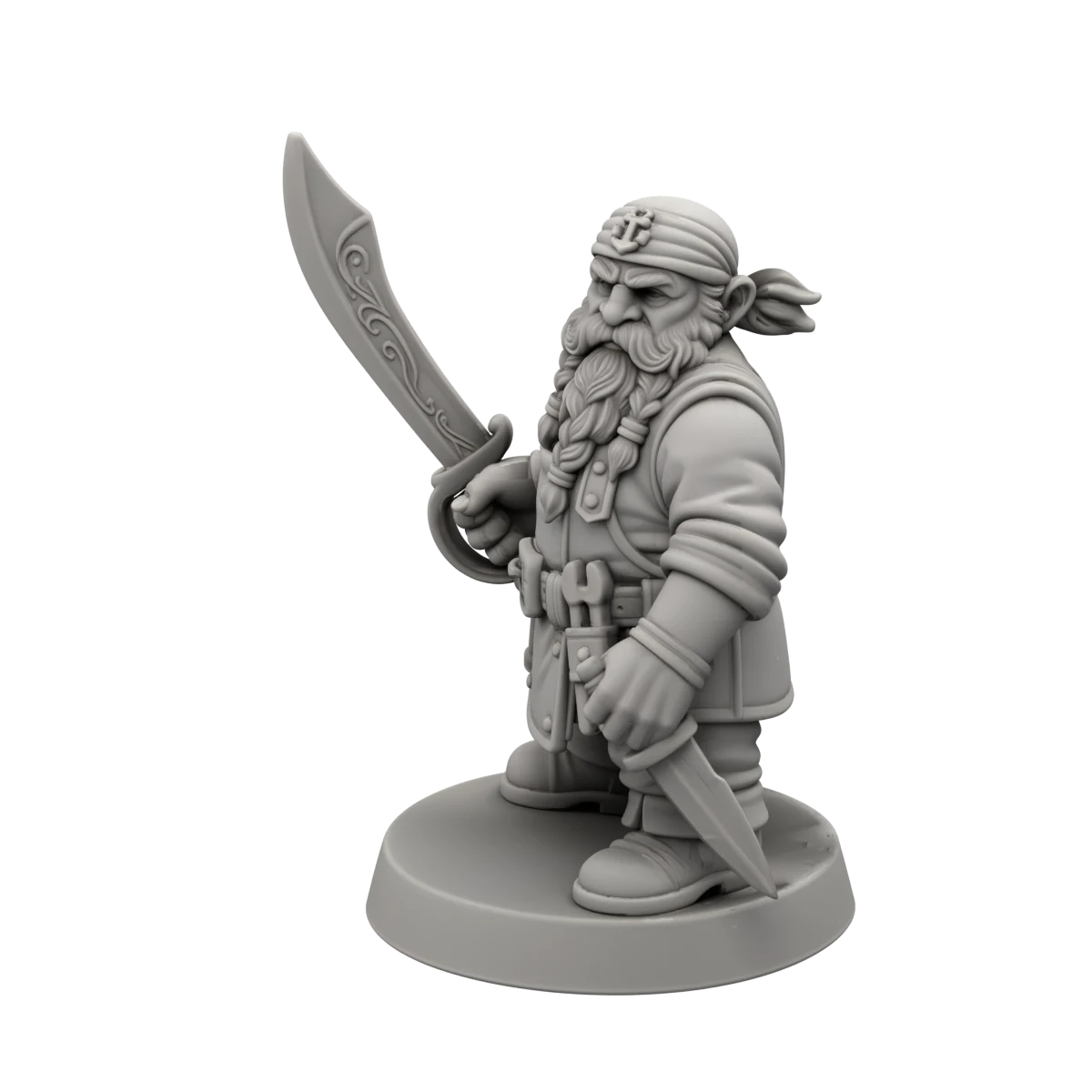
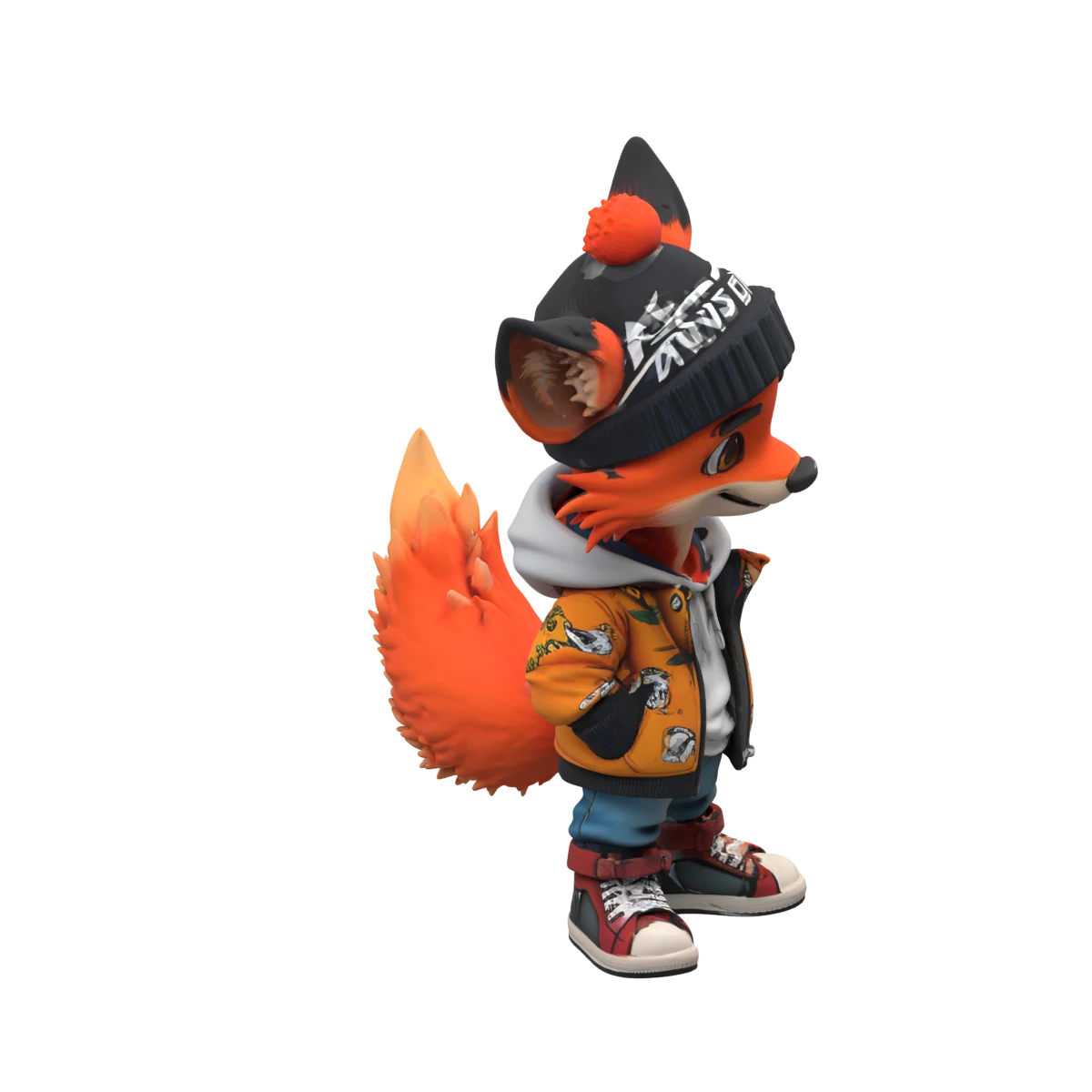
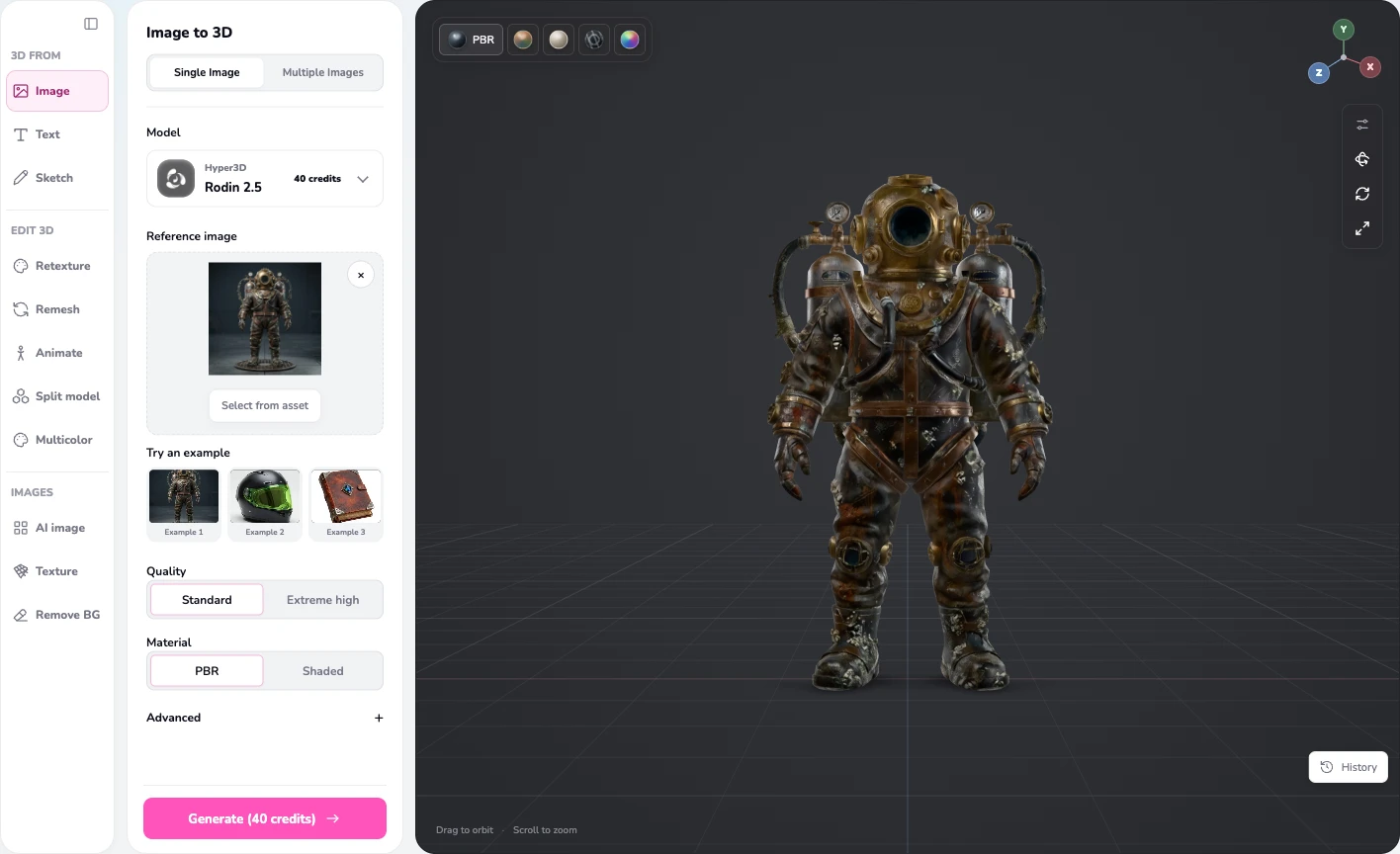
Quady3D AI, also known as Quady AI, is an AI 3D model generator for images, text, sketches, and multiple views. Choose a model and settings, preview your result, and download its available files.
Can I generate 3D models from both text and images?+
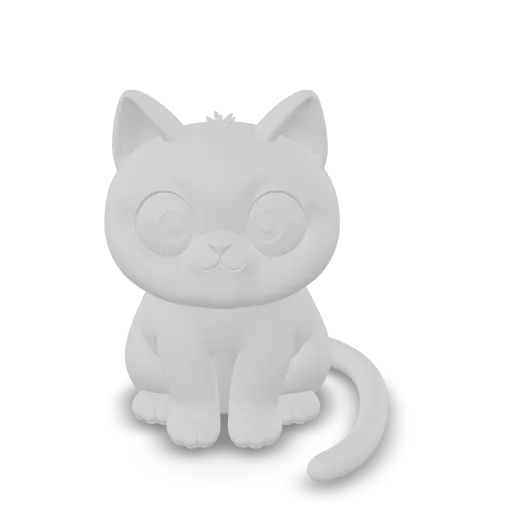
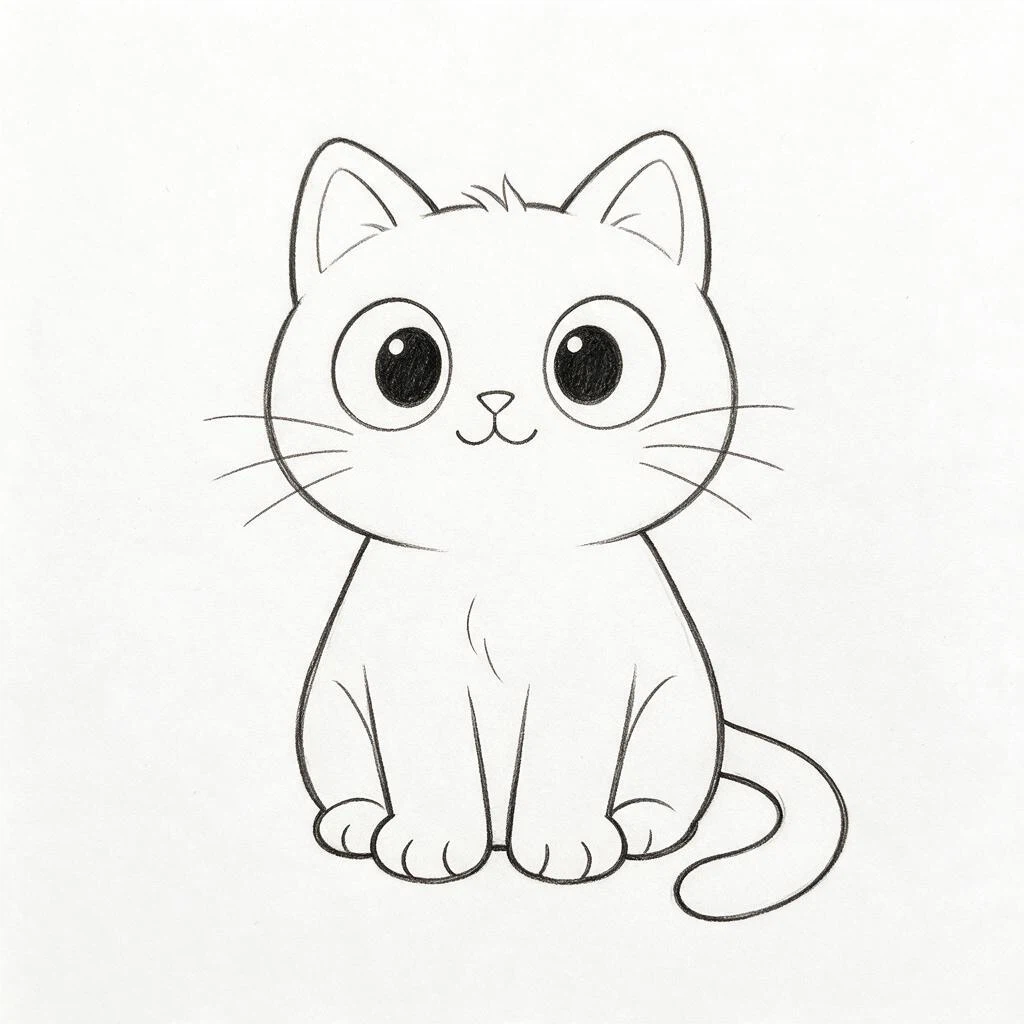
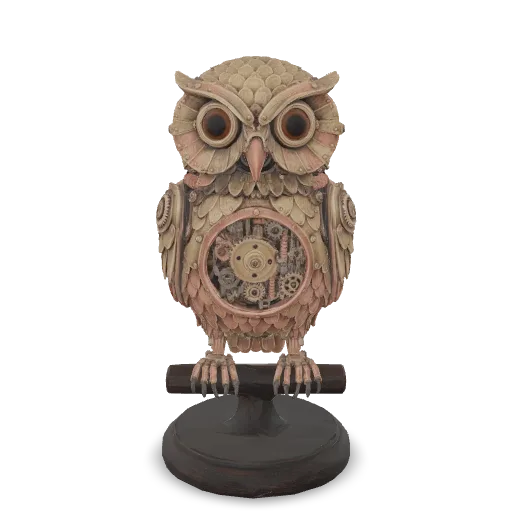
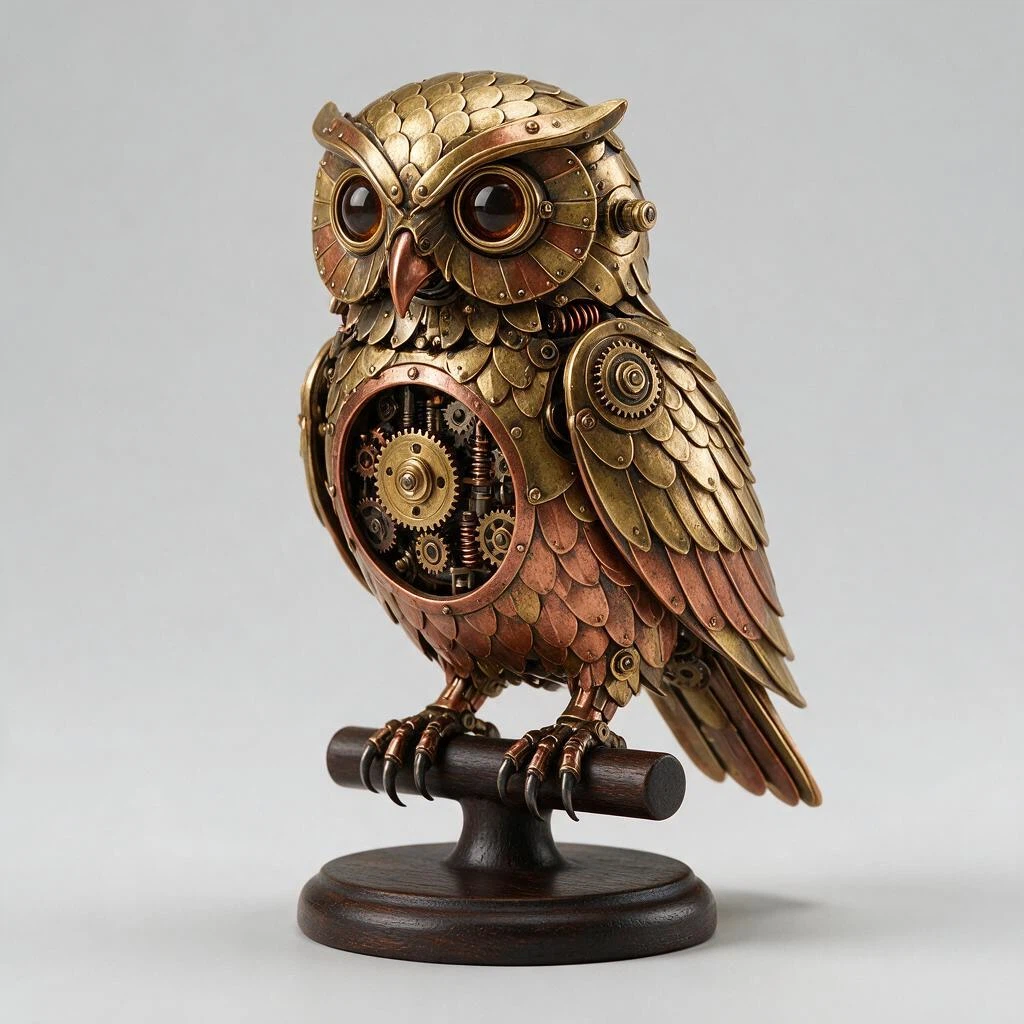
Yes. Describe an object in the Text to 3D workflow or upload a reference in Image to 3D. You can also start from a sketch or several views of the same object.
Can I try Quady3D for free?+
Yes. Verify your email to receive 30 welcome credits once. Each generation uses credits based on the model and settings; some choices need a paid balance. Welcome credits do not renew monthly.
Which AI 3D model should I choose?+
Use Hunyuan3D for a sketch, or Tripo for several views of the same object. For a text prompt, explore Meshy, Tripo, or Rodin. For one image, compare the sample results and texture controls to find the look you want.
How long does AI 3D generation take?+
It varies by model, settings, and queue. You can follow the job's progress in the workspace.
Which file formats can I download?+
A completed job shows the files it produced, such as GLB, OBJ, or STL when available. Formats vary by model and settings.
Can I use the result in Blender, Unity, Unreal, or 3D printing?+
Yes, when the result includes a file those tools accept. Inspect geometry and scale first; 3D printing also needs a mesh check before slicing.
Can I use generated models commercially?+
Commercial use depends on your rights to the source images or prompts and the terms of the model used. Check those terms before publishing, selling, or sharing a result.
Are AI-generated models ready for games or 3D printing?+
Treat the result as a starting point. A single image cannot show every hidden surface, and small details or textures may need editing. Games may need simpler geometry or rigging; printing needs checks for gaps, thin parts, and scale.
Do I need to install 3D software?+
No. You can generate and inspect a model in your browser. Use Blender, a game engine, or a slicer later if your project needs more editing or preparation.
Are my uploads private?+
Your uploads and saved results stay in your account unless you choose to publish a creation to the community. You can permanently delete your account and files in Account settings.